vSeeBox Remote Guide: Pairing, Replacement and Common Fixes
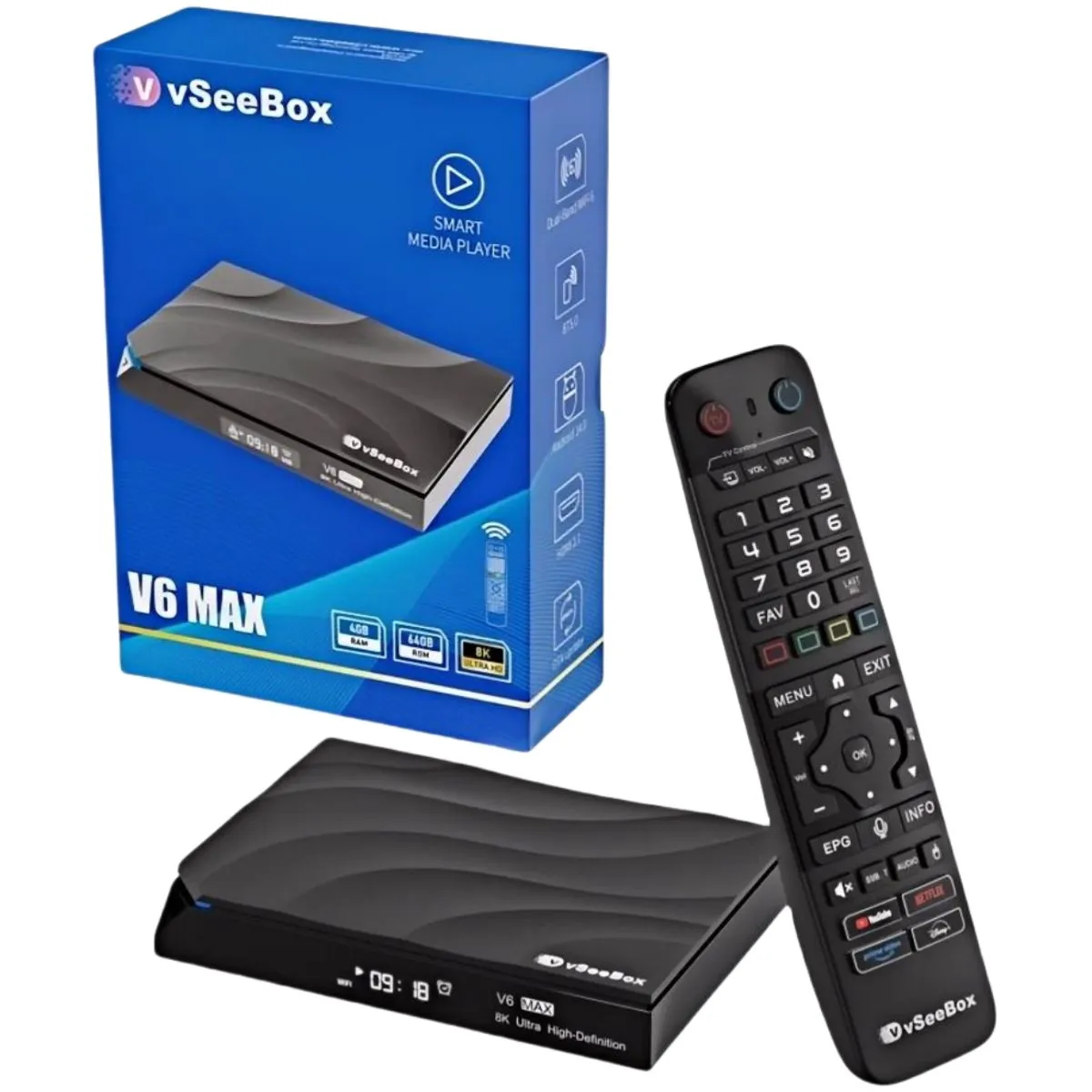
The remote is the part of a vSeeBox you touch every day, so when it stops responding the whole box feels broken. The good news is that almost every remote problem is fixed in a few minutes without any tools, and a genuinely faulty remote from an authorized seller is covered by the warranty.
This guide covers the Bluetooth remotes that ship with the current V6 line: the backlit Bluetooth remote on the vSeeBox V6 Plus and V6 Max, and the Bluetooth voice remote on the V6 Pro. The steps are the same on all three boxes because they all run Android 14.
Which remote came with your vSeeBox?
Every V6 box ships with one Bluetooth remote with Google Assistant voice control. The V6 Plus and V6 Max include a backlit version whose buttons glow, which helps in a dark room. The V6 Pro includes a Bluetooth voice remote without the backlight. All of them talk to the box over Bluetooth 5.0, which means you do not need to point the remote straight at the box the way you would with an older infrared remote.
Bluetooth does mean the remote has to be paired with the box once. A new box usually walks you through this during first setup. You only need to pair again if you replace the remote, factory reset the box, or the pairing gets lost.
How to pair a vSeeBox remote step by step
- Put two fresh batteries in the remote. Weak batteries are the number one reason pairing fails.
- Plug in the vSeeBox and wait for the home screen to load completely.
- Hold the remote within about three feet of the box.
- If the box shows a pairing prompt, follow it on screen.
- Otherwise, use any working remote, a USB mouse or the box's on-screen menu to open Settings → Remotes & Accessories → Add accessory.
- Select the remote when it appears in the list and wait for the confirmation message.
- Test the voice button — the first time you use it, Android may ask for microphone permission.
Remote not responding? Work through these fixes
Try these in order and test the remote after each one. Most people never get past the third step.
- Replace the batteries with a new pair from a fresh pack.
- Unplug the vSeeBox from power for 30 seconds, plug it back in and wait for the home screen.
- Move other Bluetooth devices (headphones, game controllers, phones) away while you pair.
- Remove the old remote in Settings → Remotes & Accessories, then add it again.
- Check for a system update in Settings → System → Updates.
- If the remote works for the box but not your TV's power and volume, set up the learning function — see our guide to programming the remote to your TV.
Using your phone or a USB mouse while you wait
If the remote is completely dead you can still control the box. Any standard USB mouse plugged into one of the USB ports works immediately on Android 14 and lets you click through Settings to pair a remote. Many Android remote apps from Google Play can also control the box once it is on your WiFi network.
Getting a replacement vSeeBox remote
If your remote has a hardware fault — buttons that don't register, a backlight that never turns on, or a remote that won't pair with any box — and you bought your vSeeBox from Vseebox Wave, it is covered by the 1-year hardware warranty. Call or text 800-320-0625 with your order number and we will troubleshoot it with you and arrange a replacement if needed.
Accidental damage such as a dropped or water-damaged remote is not a warranty defect, but call us anyway and we will tell you what replacement options are available. Be careful with very cheap third-party remotes sold online: many are infrared-only copies that cannot pair over Bluetooth and do not support voice control.
Which V6 box has the best remote?
If the remote matters to you, the backlit remote on the vSeeBox V6 Plus and V6 Max is the nicer one to use in a dark room. The V6 Pro's voice remote has the same Google Assistant voice search but no backlight. All three remotes can learn your TV's power and volume buttons.
Frequently asked questions
- How do I pair my vSeeBox remote?
- Insert fresh batteries, hold the remote close to the box and open Settings → Remotes & Accessories → Add accessory, then select the remote.
- Is a replacement vSeeBox remote covered by warranty?
- Yes, if the remote has a hardware defect within the first year and you bought the box from Vseebox Wave. Call 800-320-0625 with your order number.
- Can I control a vSeeBox without the remote?
- Yes. Plug a USB mouse into the box or use an Android remote app on your phone while you pair a new remote.