How to Program a vSeeBox Remote to Your TV (V6 Step-by-Step)
4 min readUpdated September 25, 2026By the Vseebox Wave team
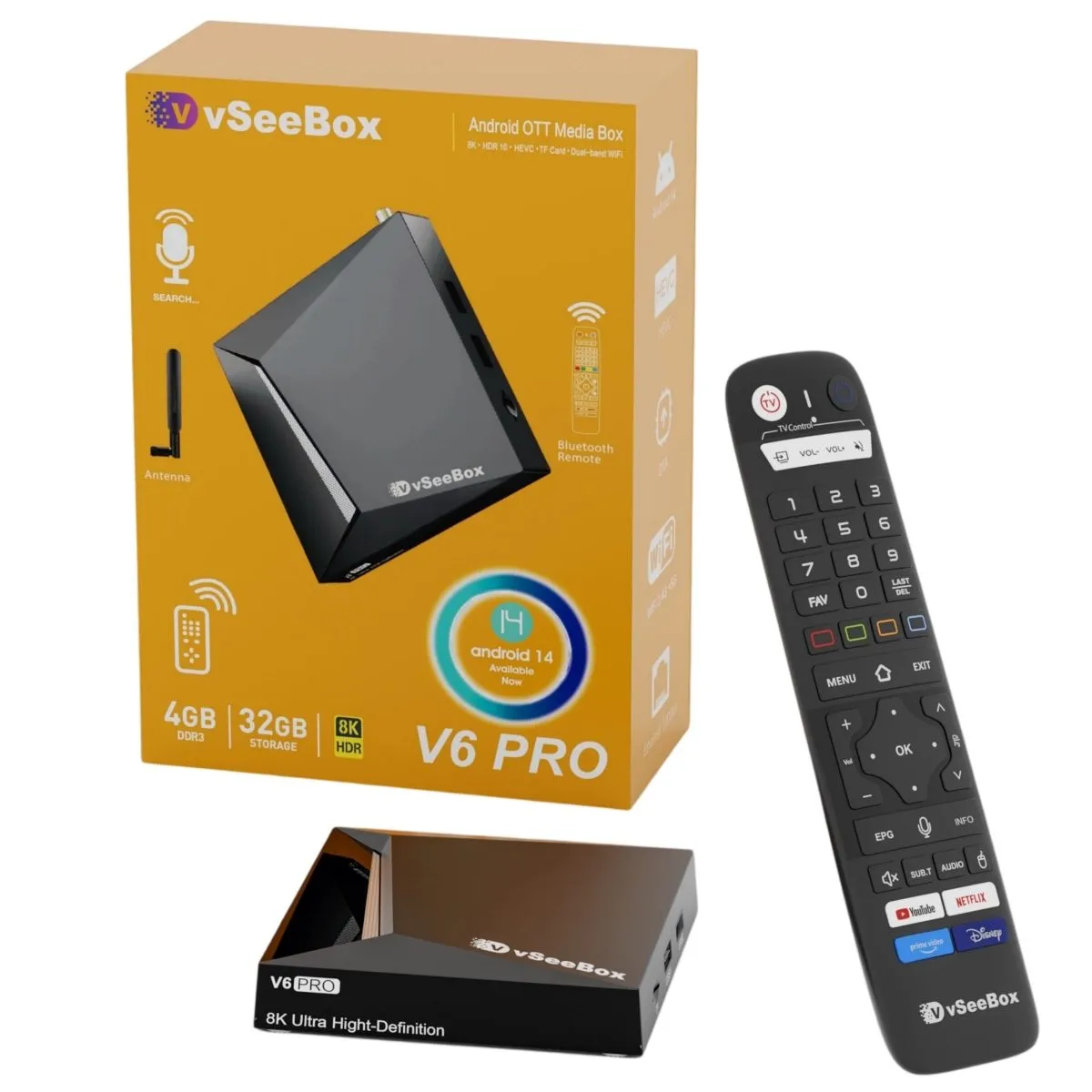
The vSeeBox V6 remote works over Bluetooth for the box and can learn your TV's infrared power and volume buttons, so one remote runs everything.
Step 1: Pair the remote with the box
- Put fresh batteries in the remote
- Hold the remote close to the vSeeBox
- Follow the on-screen pairing prompt during setup, or open Settings → Remotes & Accessories → Add accessory
- Wait for the confirmation message
Step 2: Learn your TV's power and volume
- Point your TV remote and vSeeBox remote head-to-head
- Press and hold the learning (TV/power) button on the vSeeBox remote until the light blinks
- Press the matching button on your TV remote; the light flashes to confirm
- Repeat for volume up, volume down and mute
Remote not working? Try this
- Replace the batteries
- Unplug the vSeeBox for 30 seconds, then pair again
- Remove other Bluetooth devices nearby during pairing
- Still stuck? Call us at 800-320-0625 — covered by your 1-year hardware warranty
Frequently asked questions
- Can the vSeeBox remote turn my TV on and off?
- Yes. Use the learning function to copy your TV remote's power and volume buttons.
- Why won't my vSeeBox remote pair?
- Usually it's low batteries or distance. Replace the batteries, hold it close to the box and restart the box before pairing again.