How to Fix vSeeBox Buffering and WiFi Problems (Step-by-Step)
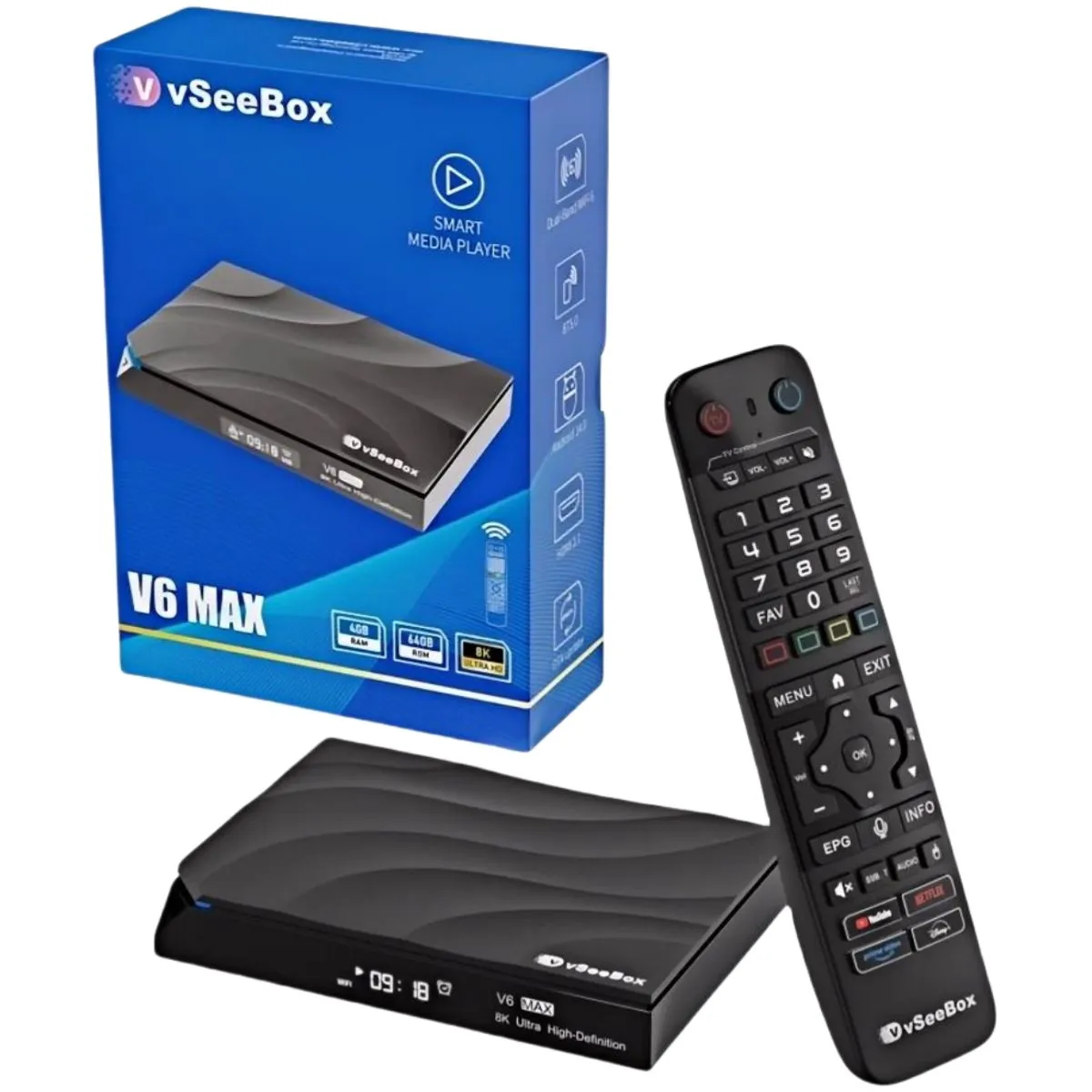
Buffering — the spinning wheel that interrupts a show — is almost never caused by the vSeeBox itself. The V6 Plus, V6 Max and V6 Pro all have WiFi 6 and enough processing power to decode high-bitrate 4K video smoothly. When video stalls, the bottleneck is nearly always the connection between your router and the box, or the internet connection coming into your home.
Work through the steps below in order. Each one takes a few minutes and you can test a show after each step to see whether the problem is solved.
Step 1: Check your internet speed
Run a speed test on a phone or laptop standing next to the TV, not next to the router. As a rough guide, a single 4K stream needs a steady 25 Mbps or more. If several people in the house are streaming, gaming or on video calls at the same time, you need more.
If the speed next to the TV is much lower than the speed next to the router, the problem is WiFi coverage. If it is low everywhere, contact your internet provider — no streaming box can fix a slow internet plan.
Step 2: Restart the box and the router
Unplug the vSeeBox and your router from power for 30 seconds, plug the router back in first, wait until its lights settle, then plug in the box. This clears temporary memory on both devices and fixes a surprising number of buffering issues.
Step 3: Use the 5GHz WiFi band
Every V6 box supports dual-band WiFi 6 on 2.4GHz and 5GHz. The 5GHz band is much faster and less crowded, so it is the right choice whenever the box is within a couple of rooms of the router. Open Settings → Network & Internet and pick your router's 5GHz network (often labelled 5G or with a suffix). The 2.4GHz band reaches further but is slower and shared with microwaves, baby monitors and neighbours' networks.
The vSeeBox V6 Max has a 2T2R MIMO WiFi 6 radio, the strongest wireless specification in the line, which helps in WiFi-only homes.
Step 4: Plug in an Ethernet cable if you can
A wired connection removes WiFi from the equation entirely. The vSeeBox V6 Plus and V6 Pro both have gigabit Ethernet, and the V6 Max has 10/100M Ethernet, which is still plenty for 4K streaming. If running a cable across the room is not practical, a powerline or mesh WiFi system with an Ethernet port near the TV is the next best option.
Step 5: Fix the box's position
- Keep the box out of closed metal cabinets and away from the back of the TV, which blocks WiFi.
- Give it some airflow — a box that runs hot can slow down.
- On the V6 Pro, attach the included external antenna and point it upward.
- Move the router off the floor and out of cupboards if you can.
Step 6: Clear app cache and update
If only one app buffers while others play smoothly, the problem is that app. Open Settings → Apps, choose the app and select Clear cache. Then check Google Play for an update to the app, and check Settings → System → Updates for an Android system update for the box.
Free up storage too. If the box is almost full, apps have no room to buffer video. The V6 Plus and V6 Max have 64GB of storage and the V6 Pro has 32GB; uninstall apps you no longer use.
Still buffering?
If you have tried every step and a box bought from Vseebox Wave still buffers on a fast, wired connection, call or text 800-320-0625. Your box is covered by our 1-year hardware warranty and our team will help you work out what is going on.
Frequently asked questions
- Why does my vSeeBox keep buffering?
- Usually because of slow internet or weak WiFi where the TV is. Test your speed next to the TV, switch to 5GHz WiFi or use Ethernet.
- What internet speed does a vSeeBox need?
- As a rough guide, a steady 25 Mbps or more for a single 4K stream, and more if others in the home are online at the same time.
- Which vSeeBox is best for WiFi?
- The V6 Max has a 2T2R MIMO WiFi 6 radio. For wired setups, the V6 Plus and V6 Pro have gigabit Ethernet.